![Metron-icon-diagram-2.png]](https://www.metronlab.com/hs-fs/hubfs/Metron-icon-diagram-2.png?height=40&name=Metron-icon-diagram-2.png)
Important: this feature is only available to admin users (Metron Ops Engineer role).
Table of content
File specification before SFTP upload
Data ingestion config step by step
4) A. Fill column settings for Process Files
4) B. Fill column settings for Production Files
Modification / Deletion of a Data ingestion Config
Introduction
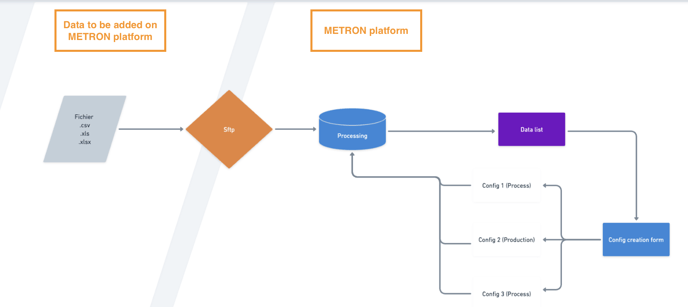
The data collection is not only centralized by automated on-site data collector systems, it can also come from several different sources such as flat files sent on SFTP server. With data ingestion feature, you have the possibility to be autonomous in the ingestion of flat files in the METRON platform.
In this article you will learn how to create a new config for the correct ingestion of data files uploaded on the SFTP.
Functional specifications for the file to upload on the SFTP
Please refer to the article File specifications for ingestion on METRON platform via SFTP.
Data ingestion Config step by step
1. Create a new config
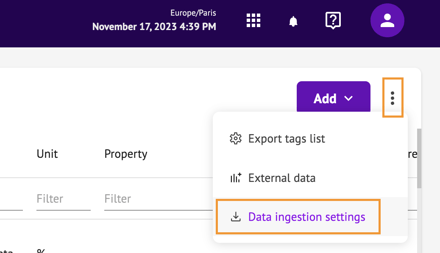
Go to Data Source Workspace and click on "Data ingestion settings" :
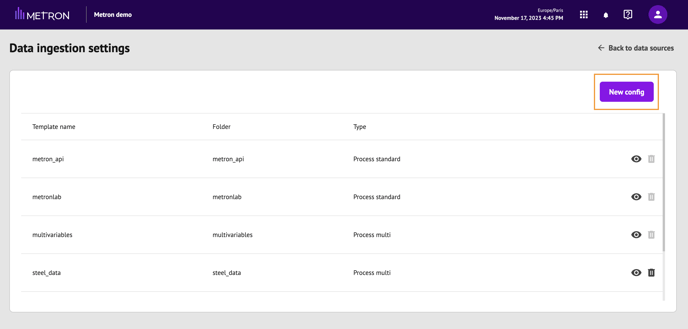
Click on "New config"
2. Fill the General Settings:
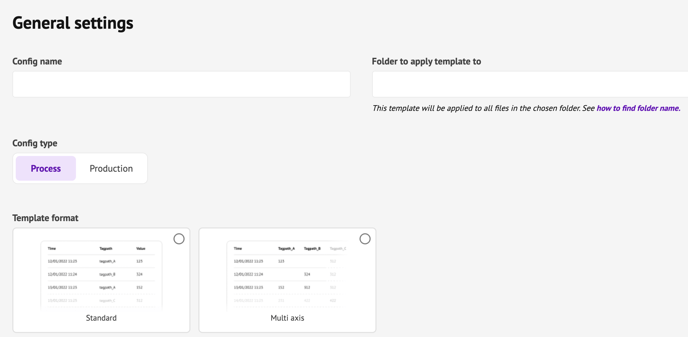
- Config name: to distinguish it from other configurations created in the platform
- Folder name : the exact name of the file deposited on the SFTP
- 💡 Good practice : you can choose the same config name and folder name.
ex : cold-water-consumption - ⚠️ Only the folder name is required, not the entire path: please avoid the following characters : / and "
- 💡 Good practice : you can choose the same config name and folder name.
-
Template format : Depends on your file content :
-
Production : for cases where you have time;valueColumn;filterAColumn;filterBColumn etc.
-
Process Standard = time;tagpath;value
-
Process multi-axis = time;tagpathA;tagpathB; etc.
-
3. Fill the File Settings:
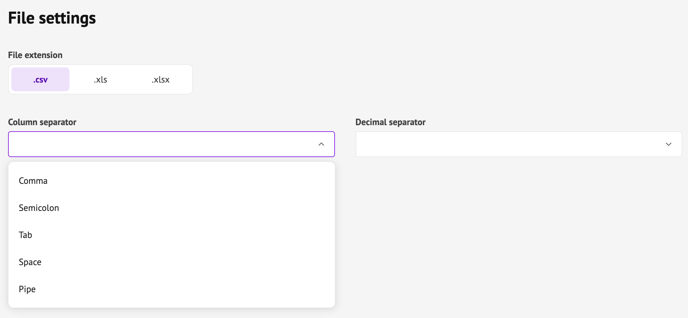
Reminder: you cannot have the same column and decimal separator (ex : comma and comma)
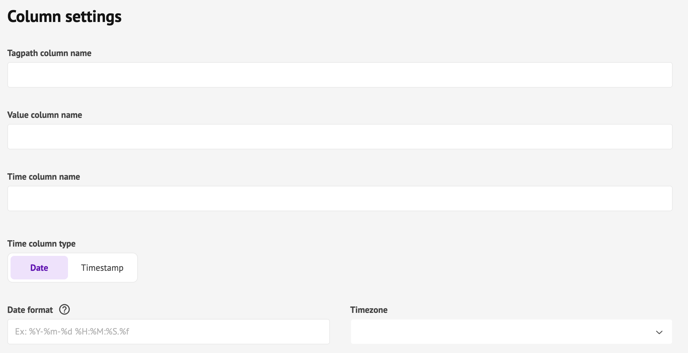
4. A) Fill the Column Settings for Process Files
-
Tagpath column name: fill the column label that is inside the file uploaded to SFTP.
-
Value column name: fill the column label that is inside the file uploaded to SFTP.
-
Time column name: fill the column label that is inside the file uploaded to SFTP.
-
Time column type
-
Date
-
Date Format: % symbol is mandatory
-
-
Example:
%Y-%m-%d %H:%M:%S.%f => 2023-11-20 10:11:12.123456 (up to 6 milliseconds possible)
-
-
- Timezone : only 2 choices possible : UTC or Platform local timezone (the one displayed on the top right of your screen
-
-
-
Timestamp = number of nano/millli/seconds elapsed since 01/01/1970
-
Nanosecond = Unix time since 01/01/1970 in NANOSECONDS ex : “1696239379000000”
-
Millisecond = Unix time since 01/01/1970 in MILLISECONDS ex : “1696239379000”
-
Second = Unix time since 01/01/1970 in SECONDS ex : “1696239379”
-
-
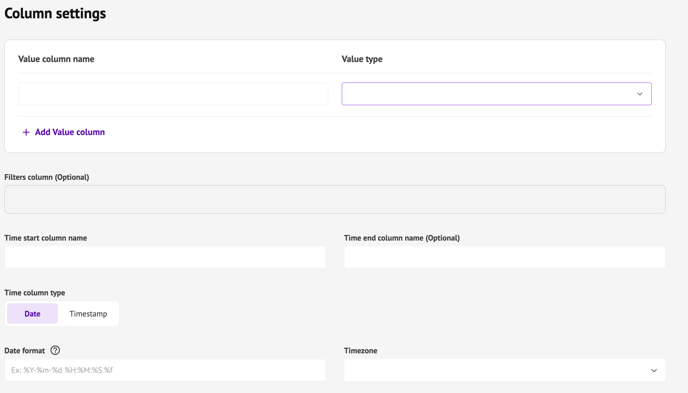
4. B) Column settings for Production file
If you selected "Production" at step 3, you have additional information to fill:
-
Value type: choose the type of value in your column between number, boolean or text:
.png?width=688&height=207&name=image%20(4).png)
-
Filters column : will necessarily be considered as Text type
In addition to column names, filters are used to make all the series present in the file unique, so that they are not lost, mixed up or overwritten at the moment of ingestion.
Example: Let's take a production file containing 4 columns such as :.png?width=473&height=113&name=image%20(3).png)
Note that the 3 lines have the same dates.
=> Several possible cases:
- If we only define the "temperature" variable column:
- the "building" and "machine" columns are ignored
- data 100 is first ingested, then overwritten by data 200, itself overwritten by data 300
= the result is not good. - If we add the "building" filter:
- the "machine" column is ignored
- data 100 is first ingested, then overwritten by data 200
- data 300 is also ingested, and does not overwrite anything else
= the result is still not good (same kind of result if you added ONLY the "machine" filter) - If we add both the "building" and "machine" filters
- data 100 is ingested and stopped, and accessible from the platform by applying the "batA" and "fourA" filters
- data 200 is ingested and stopped, and accessible from the platform by applying the "batA" and "fourB" filters
- data 300 is ingested and stopped, and accessible from the platform by applying the "batB" and "fourA" filters.
See the corresponding settings below:
-1.png?width=688&height=393&name=image%20(5)-1.png)
When entering filters in "Filters columns" field, press "enter" after each filters to that they are taken into account:
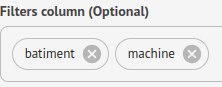
⚠️ You cannot use more than 100,000 different values for the same filter.
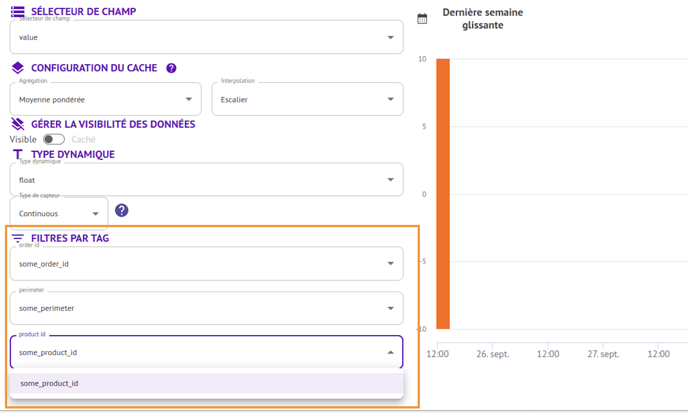
Your filters will then be available for qualification in Data source to then distinguish each timeseries, for example :
5. Check the summary of your Data ingestion configuration and click "Create config"
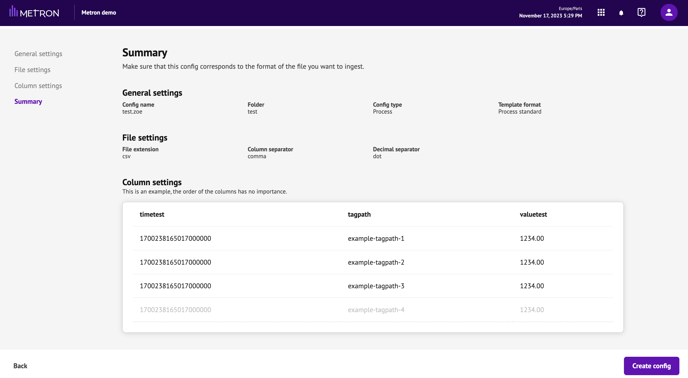
If you notice any mistake, click on "Back" at the bottom left of your screen and go back to the step you want to modify.
When everything's correct, click on "Create config".
6. Data Ingestion Process
✅ Once your file is correctly uploaded on SFTP and the corresponding config created, data is available in around 3 minutes on your METRON platform.
❌ If data is not coming, you can consult an error report on the SFTP and modify the file or the config and retry.
See the recap below :
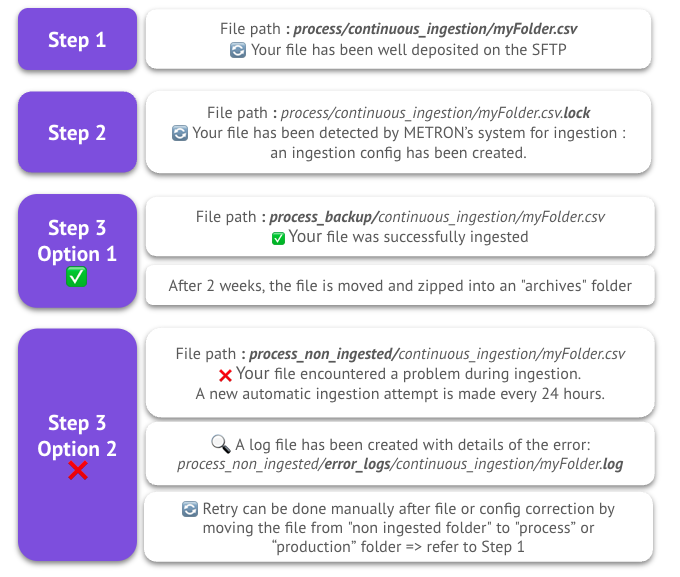
Note : There is no difference in config for 1 shot or regular ingestion.
7. Qualify Tags
👉 Don’t forget to qualify tags after saving to have them available in the platform !
Modification and deletion of Data ingestion Config
Config verification / modification
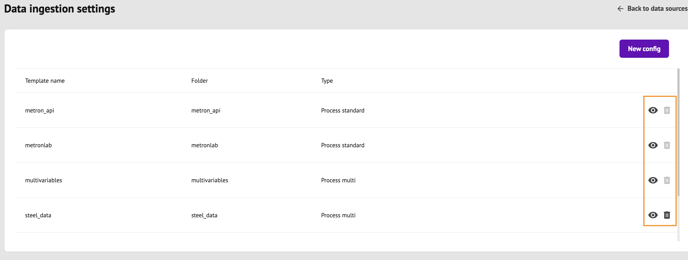
- Go to data Ingestion config feature
- Click on Preview option on the appropriate config
- Verifiy informations that have been filled
- If something needs to be corrected, you have to delete the config by clicking on the Trash icon and validate the action; and then create a new config.
Config deletion
- Click on the trash icon on the appropriate config
- Click on delete
- The config line will be removed from the table